Snippet Insertion Features
Create dynamic snippets with tabstops, placeholders, and other snippet insertion features
How they work
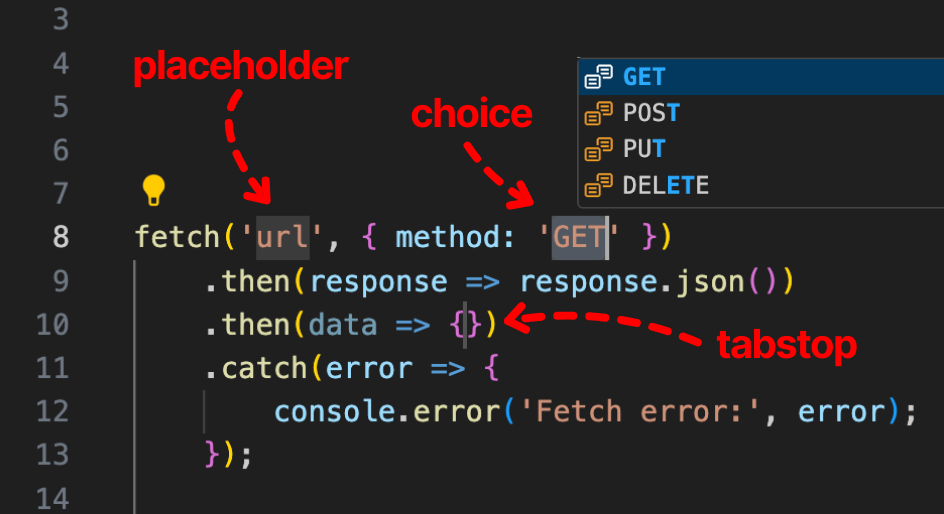
Microsoft can explain it better
Add them to your snippets
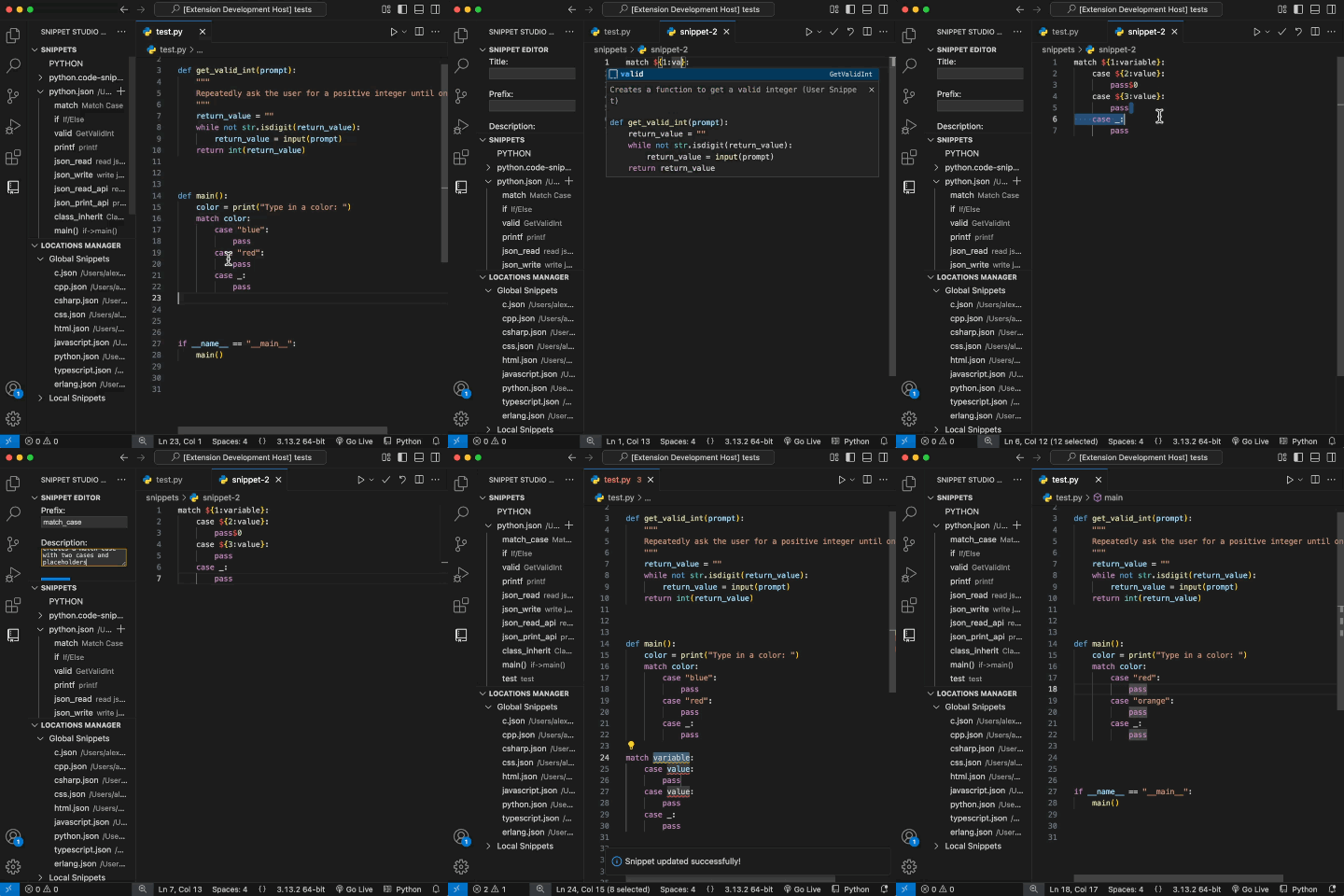
There are a few ways to add them. Your curser must be in the snippet editor.
- Right Click while in the snippet editor and choose which feature to add
- Use keyboard shortcuts while in the snippet editor
- Click the three-dot menu at the right of your editor
- Choose one of the commmands below because you love the command prompt
- Type the name of the insertion feature and use the extension-provided snippet
Keyboard Shortcuts
| Insertion Feature | Linux | Mac | Windows |
|---|---|---|---|
| Tabstop | ctrl+shift+1 | cmd+opt+1 | alt+shift+1 |
| Placeholder | ctrl+shift+2 | cmd+opt+2 | alt+shift+2 |
| Choice | ctrl+shift+3 | cmd+opt+3 | alt+shift+3 |
| Variable | ctrl+shift+4 | cmd+opt+4 | alt+shift+4 |
| Variable with Placeholder | ctrl+shift+5 | cmd+opt+5 | alt+shift+5 |
| Placeholder with Transformation | ctrl+shift+6 | cmd+opt+6 | alt+shift+6 |
| Variable with Transformation | ctrl+shift+7 | cmd+opt+7 | alt+shift+7 |
Commands
- Tabstops:
snippetstudio.editor.insertTabStop - Placeholders:
snippetstudio.editor.insertPlaceholder - Choices:
snippetstudio.editor.insertChoice - Variables:
snippetstudio.editor.insertVariable - Variables with Placeholders:
snippetstudio.editor.insertVariablePlaceholder - Placeholders with Transformations:
snippetstudio.editor.insertPlaceholderWithTranformation - Variables with Transformations:
snippetstudio.editor.insertVariableWithTransformation
Examples
Placeholders
- Use multiple tabstop/placeholder numbers to automatically enter mutliline editing
- Use placeholders for default values
$0is where the cursor ends after tabbing through all insertion features
Regex + Multiline
Goal: Fast creation of a useState variable hook.
- Type 'state' as the prefix and hit
tabto expand - Type the name of the variable. ie 'myState'
- Hit
tabto move to $2 tabstop. Regex autocapitalizes the 'M' in 'setMyState' - Type a default value
- Hit
tabto move the cursor to the end of the line
const [myState, setMyState] = useState('foo');
Solution: Use camelcase and pascalcase in Placeholder Transforms
const [${1/(.*)/${1:/camelcase}/}, set${1/(.*)/${1:/pascalcase}/}] = useState($2)$0
If you use regex you are cool. Good luck rendering that one, Docusaurus!
Variable Regex
There's also variable transformation with regex. You can read VS Code's and TextMate's documentation if you want to better understand it.
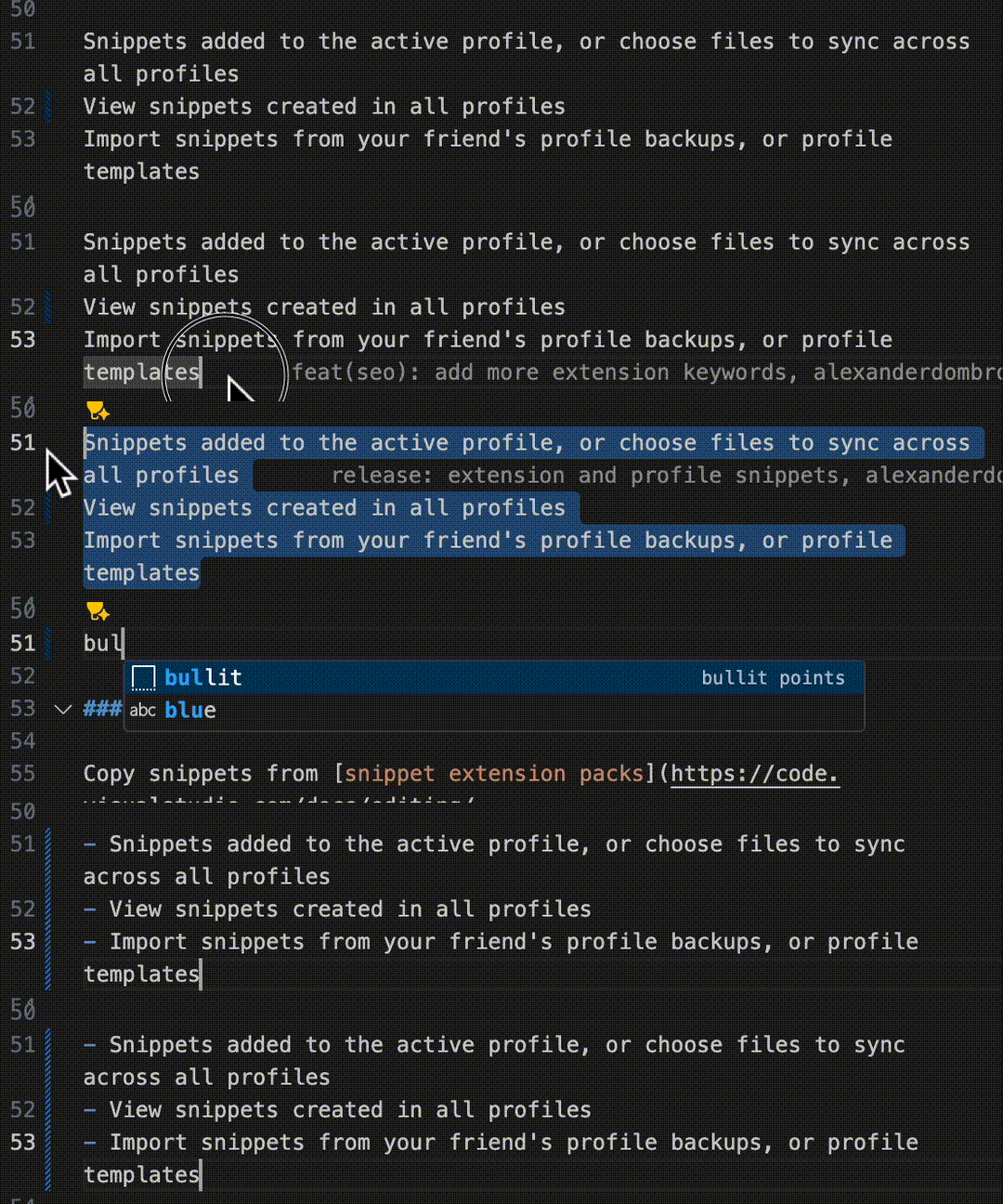
"bullit points": {
    "prefix": "bullit",
    "body": [
        "${TM_SELECTED_TEXT/^.+$/- $0/gm}"
    ],
    "description": "add markdown bullets"
}